Computing Workshop
Bill McArthur
Session 6
Topic 1:
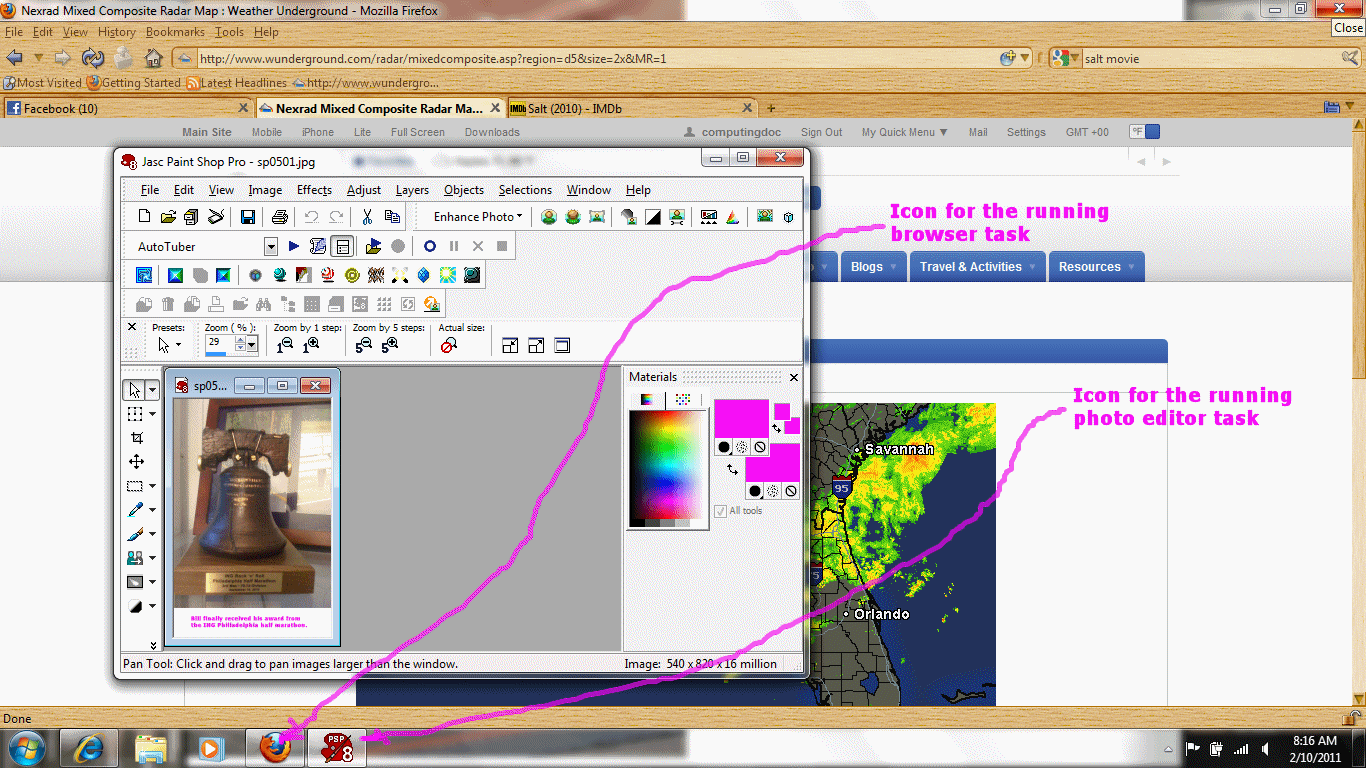
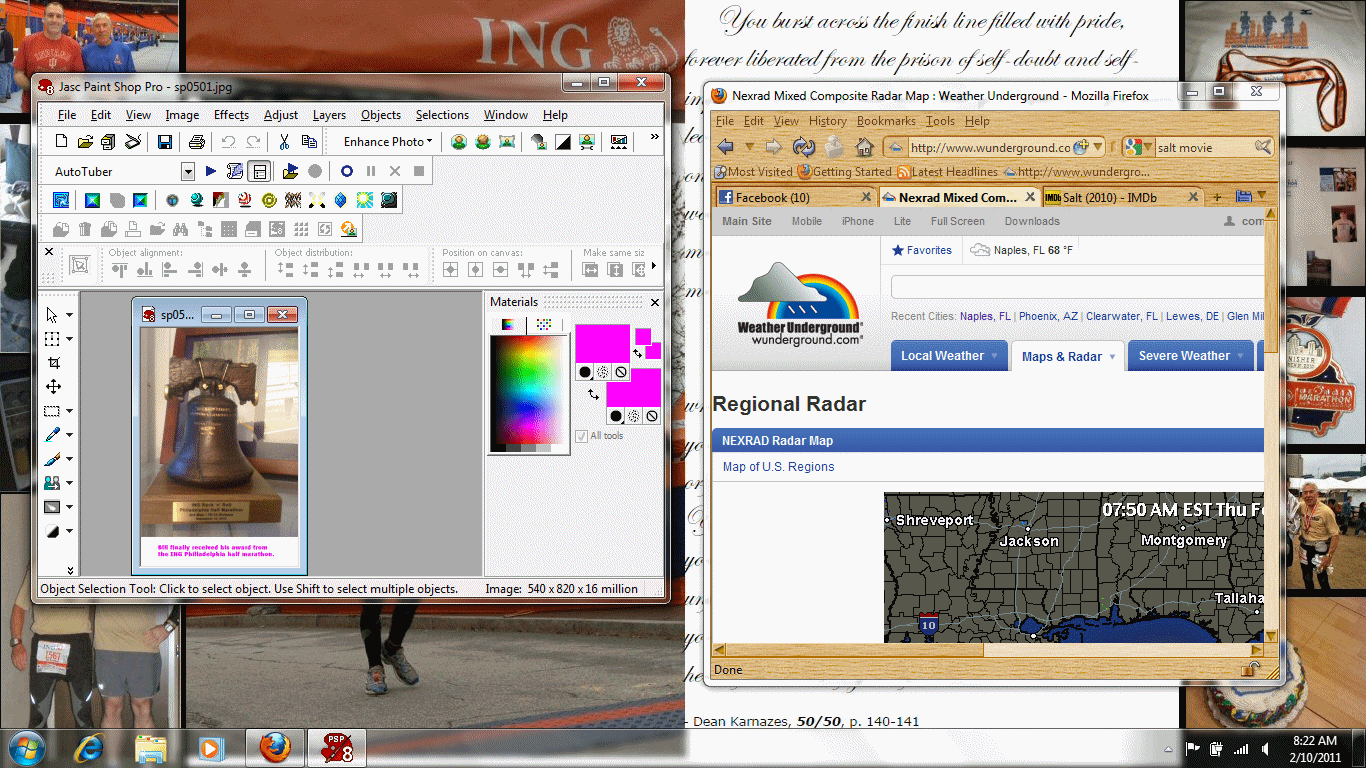
When a task is running in the background, it's not dormant, but continuing execution. Here is an example of two web browsers both showing videos at the same time with motion and sound. A slightly more practical situation might be playing music on iTunes while browsing the web.
Topic 2:
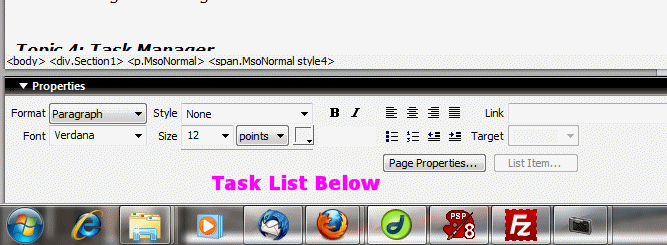
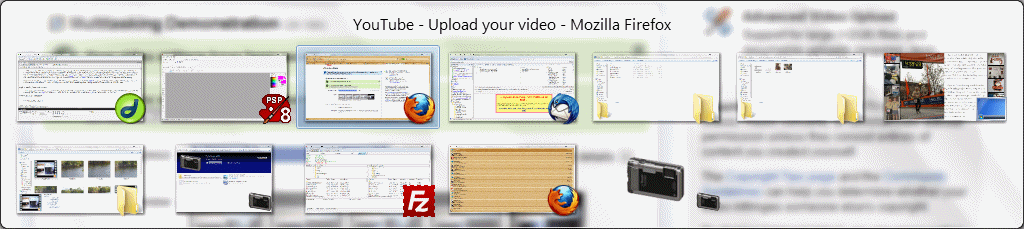
In Windows, you can switch from task to task by clicking on icons in the task list at the bottom of your screen or by holding the "Alt" key and repeatedly pressing the "Tab" key. Here is a picture of a task list at the bottom of the screen and here is a picture of an "Alt Tab" list.
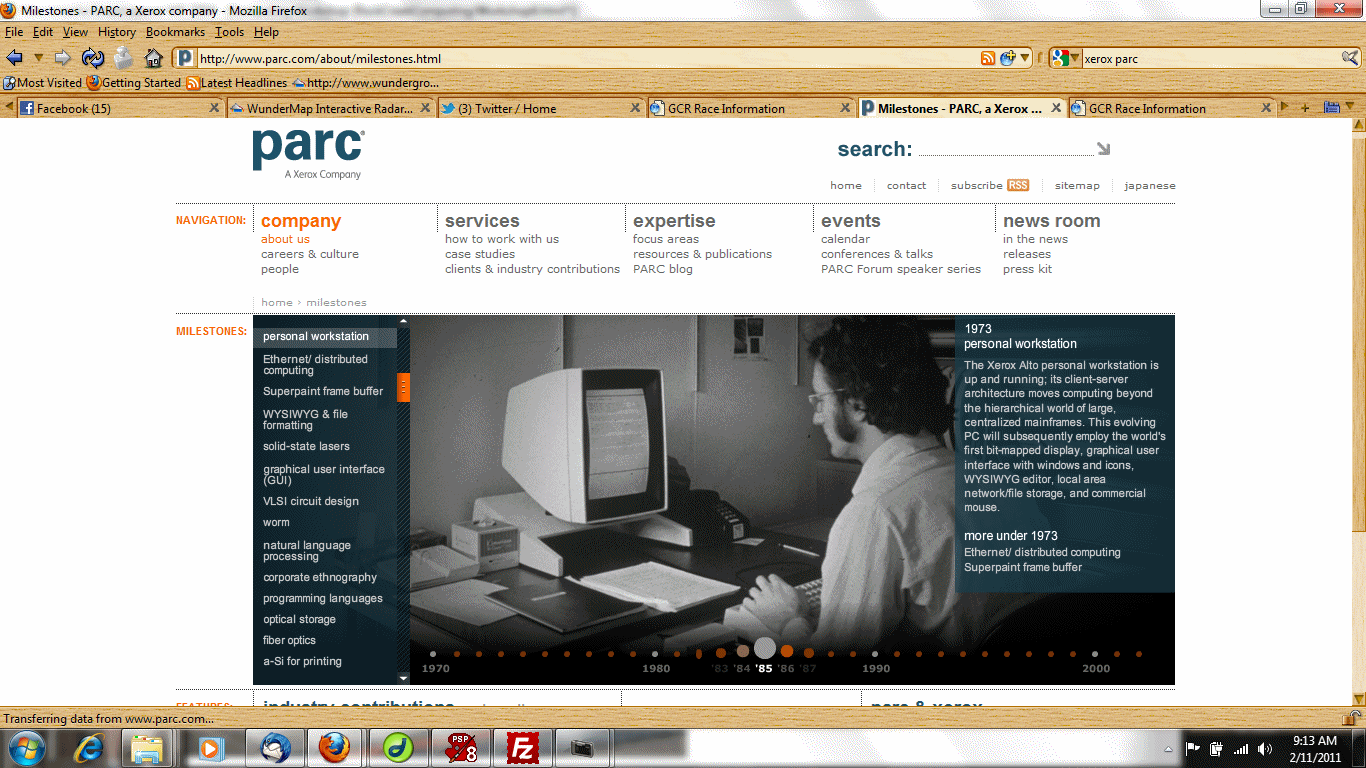
The essential ideas of using windows and a mouse for computer interaction was developed at Xerox Parc in 1973 and popularized by the Apple Macintosh in 1984. Microsoft introduced Windows 1, a text-based demonstration system in 1986, and has tried to play catch-up ever since. The X Window system used with Linux-based computers originated at MIT in 1984.
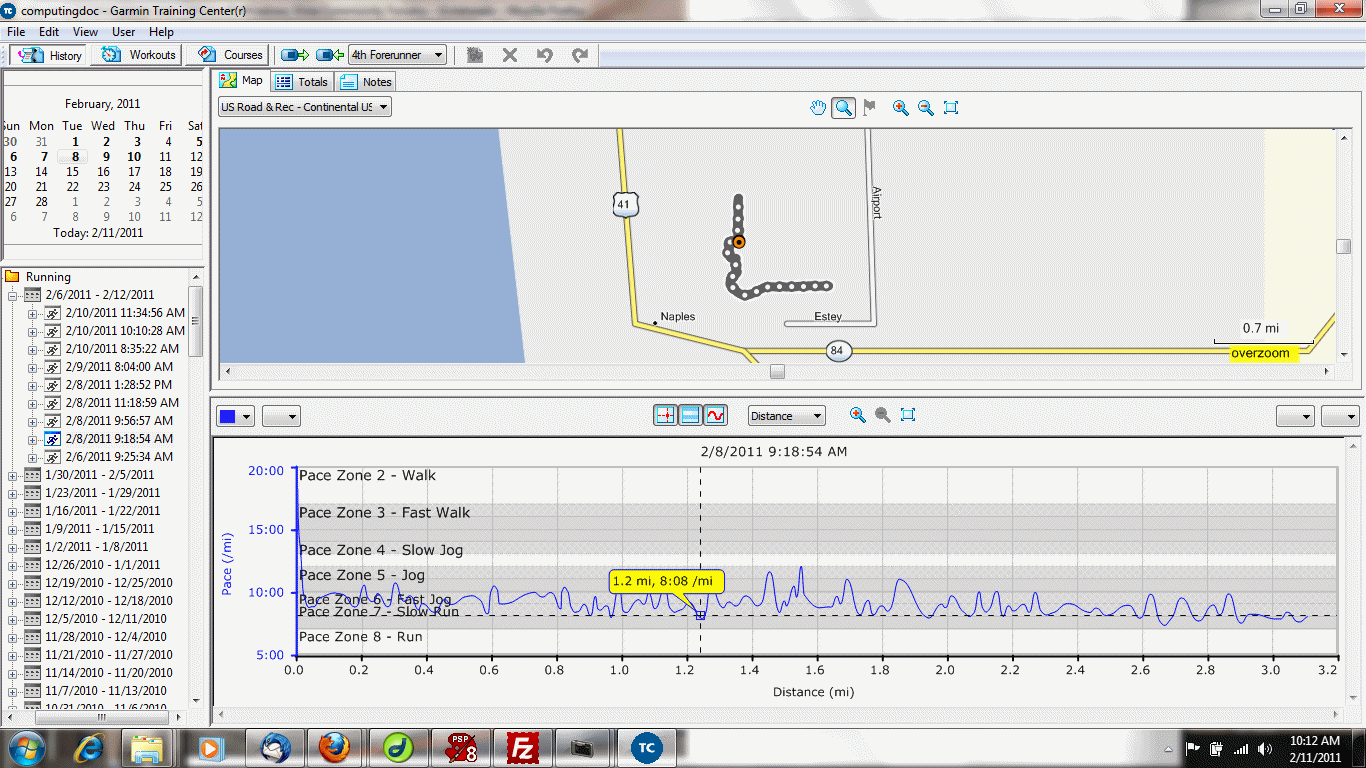
Basically, you can think of a window and a task as the same thing. A window can be minimized, maximized, restored, moved, resized, selected, or closed. Here is a good reference for the slew of operations and ways to perform them. One of my favorites is "shaking" a window. Parts of a window are called "panes"; here is a picture of the Garmin Training Center window with several panes. Did you ever wonder where a keystroke goes? Only one pane of a task window can have the "focus" which makes it a recipient of a keystroke. A mouse click can establish the focus. The tab key can be used to move the focus in a window.
Topic 4:
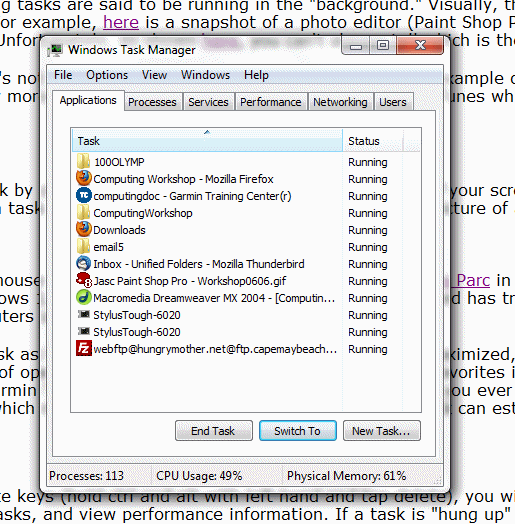
If you simultaneously press the ctrl-alt-delete keys (hold ctrl and alt with left hand and tap delete), you will get a menu that has an entry "Start Task Manager." You can see a list of all running tasks, and view performance information. If a task is "hung up" (not responding), you can select it and use the "End Task" button to terminate it (which sometimes doesn't work).